Connection errors
Site doesn't open
Check your network status
Network restrictions may prevent you from accessing the site. Those might be caused by software (antivirus programs, firewalls, or viruses), or network settings on the provider side (such as proxy servers).
Check whether you can access the site on another computer from a different network to make sure that the site works. If the site fails on your computer only, we recommend contacting your system administrator or your provider's support. If you can't open the site only in Yandex Browser, temporarily disable your antivirus or firewall. They might be blocking the connection.
Refresh page
Press Ctrl + F5 (on Windows) or ⌘ + R (on macOS) to refresh the page and its cache.
Clear data
Delete all cookies for that page:
-
Click → Settings → Websites.
-
Scroll down the page and click Advanced site settings.
-
In the Cookies section, click Cookies and site data.
-
Hover over the desired site and click the Remove link that appears to the right of the site name. All cookies of this page will be deleted.
Clear cache:
-
Click → History → Clear history or press Ctrl + Shift + Del (on Windows) or Shift + ⌘ + Backspace (on macOS).
-
Under Clear history, select the time period that you want to delete the cache for.
-
Select the Files stored in cache option.
-
Deselect all other options (if you want to clear only the Yandex Browser cache).
-
Click Clear.
Turn off extensions
To check whether extensions are blocking a page from displaying, open the site in Incognito mode. If the problem doesn't persist in Incognito mode, try identifying the extension that causes the connection error.
-
Click → Extensions and turn off all extensions.
-
Restart Yandex Browser: close it by pressing Ctrl + Shift + Q (on Windows and Linux) or ⌘ + Q (on macOS), then open it again.
-
Clear your cache so Yandex Browser doesn't load a copy of the page that was saved earlier.
-
If this solves your problem, go through your extensions and turn them back on until you find the one that causes the problem. Restart Yandex Browser every time.
-
Disable this extension. You may want to let the developers know about the problem.
Turn the hardware accelerator on or off
- Click → Settings → System.
- Under Performance, find the option Use hardware acceleration if possible. If the option is enabled, try disabling it and then restarting your browser. If the option is disabled, enable it instead and restart your browser.
Restart your network connection
- Open the Windows shell. Press Windows + R or type "Run" in the search bar. In the window that opens, type
cmd. - Enter
ipconfig /flushdns. - Restart your network connection.
You can also specify a DNS server manually. To do this:
- On your device, go to Control Panel → Network & Internet → Change adapter options.
- Right-click your internet connection and select Properties → Internet Protocol Version 4 (TCP/IPv4).
- Manually enter the DNS addresses (for example, see https://dns.yandex.com/ for the Yandex DNS servers).
If none of these solutions worked, contact us.
Certificate errors
Error ERR_CERT_AUTHORITY_INVALID
-
Downloading the certificates to your computer using the following links:
-
The Certum CA and Certum Trusted Network CA certificates will be downloaded to your computer in TXT format. Remove the
.txtextension from them:-
Open the Windows Control panel.
-
Click Folder Options (in Windows 10, click File Explorer Options).
-
On the View tab, disable option Hide extensions for registered file types.
-
Click Apply.
-
Open the Certum CA certificate in Notepad and save it after removing the
.txtextension to get theCA.pemfile. -
Open the Certum Trusted Network CA certificate in Notepad and save it after removing the
.txtextension to get theCTNCA.pemfile.
-
-
Import each certificate one by one:
-
Open the Windows shell. Press Windows + R or type "Run" in the search bar. In the window that opens, run the
certmgr.msccommand. -
Open the Trusted root certification authorities folder and then the Certificates folder.
-
Click Action → All Tasks → Import. Certificate Import Wizard starts.
-
Tap Next.
-
Select the certificate and click Next.
-
Make sure that the Certificate store field is set to Trusted root certification authorities. Tap Next.
-
Click Finish.
-
In the window that opens, click Ok.
-
-
Restart Yandex Browser. Click → Close Yandex Browser, or press Ctrl + Shift + Q (on Windows) or ⌘ + Q (on macOS), then open the browser again.
Proxy server error
Disable the proxy server option
If you see this error, it means the internet connection in Yandex Browser is set to use a proxy server. If your network doesn't use a proxy server, disable this option.
- Click → Settings → System.
- Under Network, click Proxy server settings.
- In the window that opens, go to the Connections tab and click Network settings.
- In the window that opens, clear the option Use a proxy server for your LAN.
Disable problematic extensions
Some extensions, such as VPNs and ad blockers, may change your network settings. To see if any extensions are affecting Yandex Browser, open the site in Incognito mode. If the issue doesn't persist in Incognito mode, try identifying the extension that causes the error.
-
Click → Extensions and turn off all extensions.
-
Restart Yandex Browser: close it by pressing Ctrl + Shift + Q (on Windows and Linux) or ⌘ + Q (on macOS), then open it again.
-
Clear your cache so Yandex Browser doesn't load a copy of the page that was saved earlier.
-
If this solves your problem, go through your extensions and turn them back on until you find the one that causes the problem. Restart Yandex Browser every time.
-
Disable this extension. You may want to let the developers know about the problem.
Reset your system's network settings
On Windows, open the Start menu and go to Settings. Click Network & Internet → Advanced network settings → Network reset.
Reset Yandex Browser settings
Use this method only as a last resort. To reset settings:
-
Click → Settings → System.
-
Click Reset settings.
-
Confirm the reset.
SSL errors
Alert
Yandex Browser doesn't support the SSL protocol in any of its versions.
Set the correct time
Errors most commonly occur because of incorrect date and time settings on the computer. To change the time:
- Find the date and time in the lower-right corner of the screen. Right-click them.
- Click Adjust date and time.
- Enable the options Set time zone automatically and Set time automatically.
Update Yandex Browser
Errors may also occur if you're using an outdated version of Yandex Browser. To find out what version of Yandex Browser you're using, click → Help → About Yandex Browser or enter browser://help in the SmartBox.
If an update is available, install it and restart Yandex Browser.
Clear data
Delete all cookies for that page:
-
Click → Settings → Websites.
-
Scroll down the page and click Advanced site settings.
-
In the Cookies section, click Cookies and site data.
-
Hover over the desired site and click the Remove link that appears to the right of the site name. All cookies of this page will be deleted.
Clear cache:
-
Click → History → Clear history or press Ctrl + Shift + Del (on Windows) or Shift + ⌘ + Backspace (on macOS).
-
Under Clear history, select the time period that you want to delete the cache for.
-
Select the Files stored in cache option.
-
Deselect all other options (if you want to clear only the Yandex Browser cache).
-
Click Clear.
Check for outdated protocols
- In the SmartBox, enter
browser://flags. - Press Enter.
- In the search bar, enter TLS.
- Make sure that all experiments related to TLS and SSL are set to Default. If you've changed any settings, restart the browser.
Error examples:
ERR_SSL_VERSION_OR_CIPHER_MISMATCH
This error occurs if the user opens a site that uses the TLS 1.0 or 1.1 protocol. Yandex Browser doesn't support older versions of this protocol. The minimum supported version is 1.2.
This site cannot provide a secure connection
Try the following solutions:
- Check if the problem persists in any other browser (Firefox, Google Chrome, Internet Explorer, Edge).
- If your PC has an antivirus installed, try temporarily disabling it: the page may be blocked by the antivirus.
- Check if the site works with a new Yandex Browser profile: click → Settings → General settings → Users → Add user. After you click Add user, a new profile window opens. See if the site is accessible with this new profile.
- Reset your DNS settings: open the Windows Command Prompt (press Windows + R, enter
cmdin the box that appears, then press Enter). In the command line, run the commandipconfig /flushdns, then restart your network connection. - Go to the page
browser://protectand disable the Use a secure DNS server option. If this doesn't yield the desired result, enable it again and try selecting another server. - Check your network settings. Click → Settings → System → Network. Click Proxy server settings. In the window that opens, open the Connections tab and click Network settings. In the window that opens, find the Automatically detect settings option and toggle it (select or clear the box). In addition, toggle the Use a proxy server for your LAN option (select or clear the box depending on its current status).
Site sent an invalid response
Try the following solutions:
- Check if the problem persists in any other browser (Firefox, Google Chrome, Internet Explorer, Edge).
- If your PC has an antivirus installed, try temporarily disabling it: the page may be blocked by the antivirus.
- Check if the site works with a new Yandex Browser profile: click → Settings → General settings → Users → Add user. After you click Add user, a new profile window opens. See if the site is accessible with this new profile.
- Reset your DNS settings: open the Windows Command Prompt (press Windows + R, enter
cmdin the box that appears, then press Enter). In the command line, run the commandipconfig /flushdns, then restart your network connection. - Go to the page
browser://protectand disable the Use a secure DNS server option. If this doesn't yield the desired result, enable it again and try selecting another server. - Check your network settings. Click → Settings → System → Network. Click Proxy server settings. In the window that opens, open the Connections tab and click Network settings. In the window that opens, find the Automatically detect settings option and toggle it (select or clear the box). In addition, toggle the Use a proxy server for your LAN option (select or clear the box depending on its current status).
ERR_SSL_PROTOCOL_ERROR
Try the following solutions:
- Check if the problem persists in any other browser (Firefox, Google Chrome, Internet Explorer, Edge).
- If your PC has an antivirus installed, try temporarily disabling it: the page may be blocked by the antivirus.
- Check if the site works with a new Yandex Browser profile: click → Settings → General settings → Users → Add user. After you click Add user, a new profile window opens. See if the site is accessible with this new profile.
- Reset your DNS settings: open the Windows Command Prompt (press Windows + R, enter
cmdin the box that appears, then press Enter). In the command line, run the commandipconfig /flushdns, then restart your network connection. - Go to the page
browser://protectand disable the Use a secure DNS server option. If this doesn't yield the desired result, enable it again and try selecting another server. - Check your network settings. Click → Settings → System → Network. Click Proxy server settings. In the window that opens, open the Connections tab and click Network settings. In the window that opens, find the Automatically detect settings option and toggle it (select or clear the box). In addition, toggle the Use a proxy server for your LAN option (select or clear the box depending on its current status).
Unsupported protocol
Try the following solutions:
- Check if the problem persists in any other browser (Firefox, Google Chrome, Internet Explorer, Edge).
- If your PC has an antivirus installed, try temporarily disabling it: the page may be blocked by the antivirus.
- Check if the site works with a new Yandex Browser profile: click → Settings → General settings → Users → Add user. After you click Add user, a new profile window opens. See if the site is accessible with this new profile.
- Reset your DNS settings: open the Windows Command Prompt (press Windows + R, enter
cmdin the box that appears, then press Enter). In the command line, run the commandipconfig /flushdns, then restart your network connection. - Go to the page
browser://protectand disable the Use a secure DNS server option. If this doesn't yield the desired result, enable it again and try selecting another server. - Check your network settings. Click → Settings → System → Network. Click Proxy server settings. In the window that opens, open the Connections tab and click Network settings. In the window that opens, find the Automatically detect settings option and toggle it (select or clear the box). In addition, toggle the Use a proxy server for your LAN option (select or clear the box depending on its current status).
The client and server are using different SSL versions or different cipher suites
Try the following solutions:
- Check if the problem persists in any other browser (Firefox, Google Chrome, Internet Explorer, Edge).
- If your PC has an antivirus installed, try temporarily disabling it: the page may be blocked by the antivirus.
- Check if the site works with a new Yandex Browser profile: click → Settings → General settings → Users → Add user. After you click Add user, a new profile window opens. See if the site is accessible with this new profile.
- Reset your DNS settings: open the Windows Command Prompt (press Windows + R, enter
cmdin the box that appears, then press Enter). In the command line, run the commandipconfig /flushdns, then restart your network connection. - Go to the page
browser://protectand disable the Use a secure DNS server option. If this doesn't yield the desired result, enable it again and try selecting another server. - Check your network settings. Click → Settings → System → Network. Click Proxy server settings. In the window that opens, open the Connections tab and click Network settings. In the window that opens, find the Automatically detect settings option and toggle it (select or clear the box). In addition, toggle the Use a proxy server for your LAN option (select or clear the box depending on its current status).
How can I clear the SSL cache?
You can't clear the SSL cache using Yandex Browser tools because it uses the system certificate store.
To clear the SSL cache, use the Windows settings:
-
Open the Control Panel.
-
Choose Browser properties. If you have the category view mode enabled, choose Network & Internet → Internet Options.
-
On the Content tab, click Clear SSL state.
If the site still asks to clear the SSL cache, reset your settings:
-
Press + R.
-
Type
cmdand press Enter. Command Prompt will open. -
Enter the following commands one by one, pressing Enter after each:
ipconfig /flushdns: Flush the DNS cache.netsh winsock reset: Reset the network stack.netsh int ip reset: Reset the Internet Protocol settings.
DNS Error
First, check if you can open other sites. If only one site is affected, it may be temporarily unavailable. If no sites are working, try restarting your Wi-Fi router and computer. This often helps refresh the connection. If the error persists, try resolving the issue using one of these methods:
Clear the Yandex Browser cache.
-
Click → History → Clear history or press Ctrl + Shift + Del (on Windows) or Shift + ⌘ + Backspace (on macOS).
-
Under Clear history, select the time period that you want to delete the cache for.
-
Select the Cached files option.
-
Deselect all other options (if you want to clear only the Yandex Browser cache).
-
Click Clear.
Flush the DNS cache
- Open the Windows shell. Press Windows + R or type "Run" in the search bar. In the window that opens, type
cmd. - Enter
ipconfig /flushdns. - Restart your network connection.
Change DNS servers
- On your device, go to Control Panel → Network & Internet → Change adapter options.
- Right-click your internet connection and select Properties → Internet Protocol Version 4 (TCP/IPv4).
- Manually specify the DNS addresses. Use Yandex public DNS servers (
77.88.8.8).
Error: "Page load failed. The site redirected you too many times."
Remove cookies that were installed by a webpage
-
On the error page, click the connection status icon in the SmartBox.
-
The Protect panel opens. Click Delete site cookies and data and confirm the deletion.
Allow saving cookies from third-party sites
-
Click → Settings → Websites.
-
Scroll down the page and click Advanced site settings.
-
In the Cookies section, select Allowed.
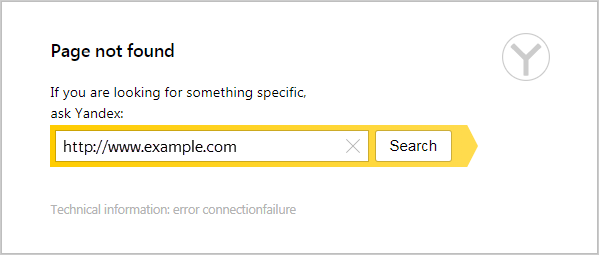
Connection Failure error
A connection failure error means that the browser couldn't retrieve a webpage.
Restart your Wi-Fi router and computer
Check if other sites or applications have internet access. If there's no connection, restart your Wi-Fi router and computer. This helps fix network issues.
Turn off extensions
Some extensions, such as VPNs and ad blockers, may be causing the error. To see if any extensions are affecting Yandex Browser, open the site in Incognito mode. If the issue doesn't persist in Incognito mode, try identifying the extension that's causing the connection failure.
-
Click → Extensions and turn off all extensions.
-
Restart Yandex Browser: close it by pressing Ctrl + Shift + Q (on Windows and Linux) or ⌘ + Q (on macOS), then open it again.
-
Clear your cache so Yandex Browser doesn't load a copy of the page that was saved earlier.
-
If this solves your problem, go through your extensions and turn them back on until you find the one that causes the problem. Restart Yandex Browser every time.
-
Disable this extension. You may want to let the developers know about the problem.
Change your proxy server settings
- Click → Settings → System.
- Under Network, click Proxy server settings.
- In the window that opens, go to the Connections tab and click Network settings.
- In the window that opens, clear the option Use a proxy server for your LAN.
Clear the cache
-
Click → History → Clear history or press Ctrl + Shift + Del (on Windows) or Shift + ⌘ + Backspace (on macOS).
-
Under Clear history, select the time period that you want to delete the cache for.
-
Select the Cached files option.
-
Deselect all other options (if you want to clear only the Yandex Browser cache).
-
Click Clear.
Reset your system's network settings
On Windows, open the Start menu and go to Settings. Click Network & Internet → Advanced network settings → Network reset.
Reset Yandex Browser settings
Use this method only as a last resort. To reset settings:
-
Click → Settings → System.
-
Click Reset settings.
-
Confirm the reset.
Where is Turbo mode?
Yandex Browser used Turbo mode to speed up access to various sites, but it only worked over the HTTP protocol. There are very few such sites left now, so we turned off Turbo mode in Yandex Browser and removed it from settings.
We have already added other ways to speed up your browsing. They'll help Yandex Browser stay fast without a special mode and further improve page loading speeds.
You can enter search queries in the address bar and Yandex Browser will understand what you need.